

A shared tablet can be useful for family activities, travel, and school tasks. But a child using a tablet is not the same as a child using an adult’s account inside one app.
On Android tablets that support multiple users, each user profile can have its own apps, settings, and sign-in state.
This guide is only about compatible Android tablets. Not every Android device has the same multi-user options, and an iPad follows a different model. Check your tablet maker’s support information before assuming that a menu will be present.
Jump to:
A User Profile Is More Than An App Account
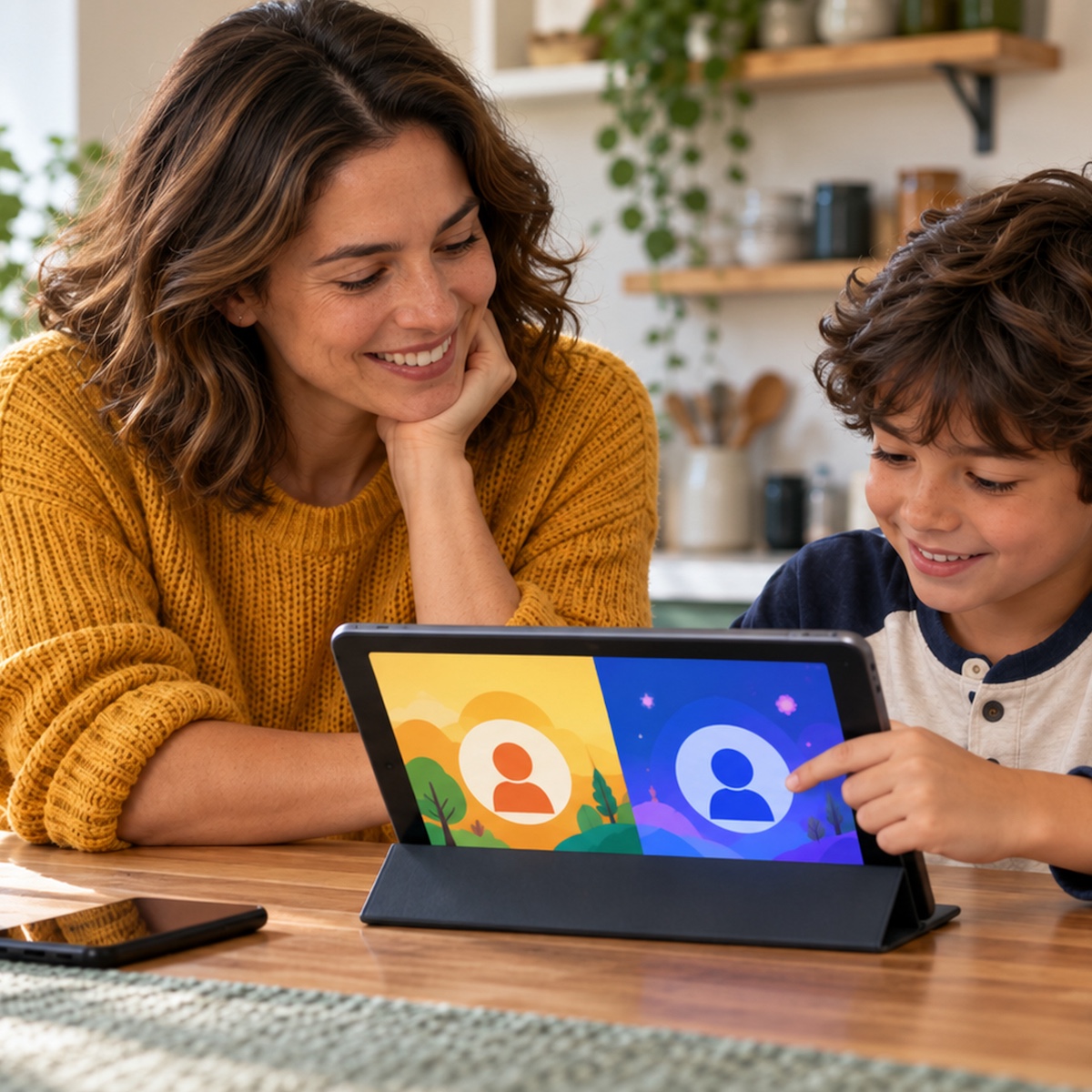
Signing out of a video app and letting a child sign in with their own account changes one app. Switching to a separate tablet profile can change the wider space around it: apps, settings, files, and accounts can be kept apart.
Google’s Kids Space guidance describes multi-user support on some Android tablets, with separate spaces for a supervised child and an adult.
That separation can make everyday handovers calmer. The child can use the profile prepared for them, while the adult keeps personal email, work apps, and payment details in a different space.
It is not a promise that every risk disappears. It is a clearer starting point than handing over an already-open adult profile.
Supervision Needs The Right Profile
Creating a child account is not the final check. Google notes that another user space on the device may not have the same Family Link settings if the child is not signed in there.
An adult should check which profile is open and make sure other unsupervised spaces are appropriately locked.
Do not solve a setup problem by turning off supervision or giving a child the adult passcode.
Take a moment to confirm the current profile, the adult-profile lock, and the age-appropriate settings that apply to the child’s actual space. These simple checks matter more than adding extra apps.
A Vpn And Supervision Do Different Jobs
A VPN app can operate in the user or profile where it is connected. Android’s VPN documentation explains that VPN services run by user or profile.
A connection shown in an adult space should not be treated as proof that a child’s separate profile is using the same connection.
Family supervision can guide app access, content choices, purchases, and the way a child uses the device. A VPN connection does not replace those controls.
It does not decide which apps are suitable, set screen-time expectations, or make a shared tablet automatically appropriate for every age.
If an adult is considering a free VPN option for their own use, check the supported platform and the current plan conditions.
Do not remove supervision to install a connection tool, and do not assume a feature works the same way in every tablet profile.
X-VPN can be evaluated as a connection tool for the relevant profile and device.
That role is separate from parental supervision, and it should not be used to make broader claims about a child’s online safety.
Make The Handover Easy To Check
Before giving the tablet to your child, open the right profile and look for the normal signs that it is the prepared space.
Confirm that the adult profile is locked. Then let the child use the tablet without constantly changing settings during the activity.
Review the setup when the tablet updates, when you add another user, or when your child’s needs change. You do not need to rebuild every setting each time.
A short check of the profile, the lock, and the relevant supervision settings is enough to catch many avoidable mistakes.
Before adding a profile, decide who will manage updates, app requests, and the device passcode.
A profile structure works best when the adult knows which space is for the child and does not casually use it for adult tasks. Simple roles are more useful than adding several partly configured accounts.
It can help to create the child profile when there is time to read the prompts. Setting it up while a child is waiting to watch something often leads to skipped choices and a rushed handover.
A quiet setup makes it easier to notice which account is active and which settings belong to it.
Explain the handover in plain language as well. A child does not need a long technical lesson, but they can understand that their space is for their apps and that an adult should switch back before using email, shopping, or work tools. Shared expectations reduce accidental profile changes.
If the tablet does not support the profile arrangement you want, do not try to force instructions written for another device.
Use the options the maker supports, or keep the shared use more limited.
A clear boundary on one device is better than a complicated workaround that nobody in the family can maintain.
Keep downloads in mind as well. An app installed in one profile may not simply appear in another profile with the same settings.
Check the profile where the child will actually use it.
This makes it easier to spot an accidental adult sign-in before the tablet is handed over.




When a grandparent, babysitter, or another trusted adult uses the tablet, tell them which profile to choose.
They do not need access to every setting to help a child open an activity. A simple profile choice also protects the adult’s privacy.
If the profile screen is confusing, keep a short household note with the correct name and the person responsible for the device.
This is not about making the tablet strict. It is about making the safe option easier to choose. Simple routines are easier for everyone to keep every day.





Leave a Reply