

A delivery app needs an address. A shared calendar may contain school pickups and appointments.
A photo-printing service receives the pictures you choose to upload. These are useful services, but each can receive information about family life simply through the way you use it.
You can limit what you share by reviewing account details, app permissions and the audience for family photos or calendars.

Jump to:
Three Different Ways Information Can Be Shared
First, apps receive the information you enter or upload, such as an address, account details or a photo.
Second, an app can request permission to use information or features on your phone, such as contacts, location or the camera. That access is controlled through the device’s settings and the choices available for each app.
Third, there is the network connection. A service such as X-VPN encrypts traffic between your device and a VPN server. This addresses a different part of privacy from deciding which photos to upload or whether an app needs your location.
Look at What You Are Giving the Service Directly
Open the account settings in an app your family uses often. Review saved addresses and profile details, and remove information you no longer need there.
Keep required account and recovery details accurate. Leave optional fields blank unless they support a feature you use.
Remember that signing in identifies the account to the service. Changing your network connection does not stop the app from knowing which account is placing an order. It also does not remove the information you deliberately include in a form or upload.
For a family calendar or photo-sharing app, check who can see the content as well as what it contains.
There is a practical difference between an appointment visible to a partner and one shared with a wider group.
Review the audience before adding details such as a child’s full name or a regular pickup location.
Give Each App the Access Its Job Requires
Review permissions you granted for features you no longer use.
On iPhone, start in Settings under Privacy & Security to review access to information and features.
On Android, open the app’s settings and look for Permissions, or use the permission manager to review apps by permission type.
Menu names and available options vary with the device and software version.
Start with location. A navigation app may need it while you follow a route; review whether other apps need access in the background. Where available, limit access to when you use the app.
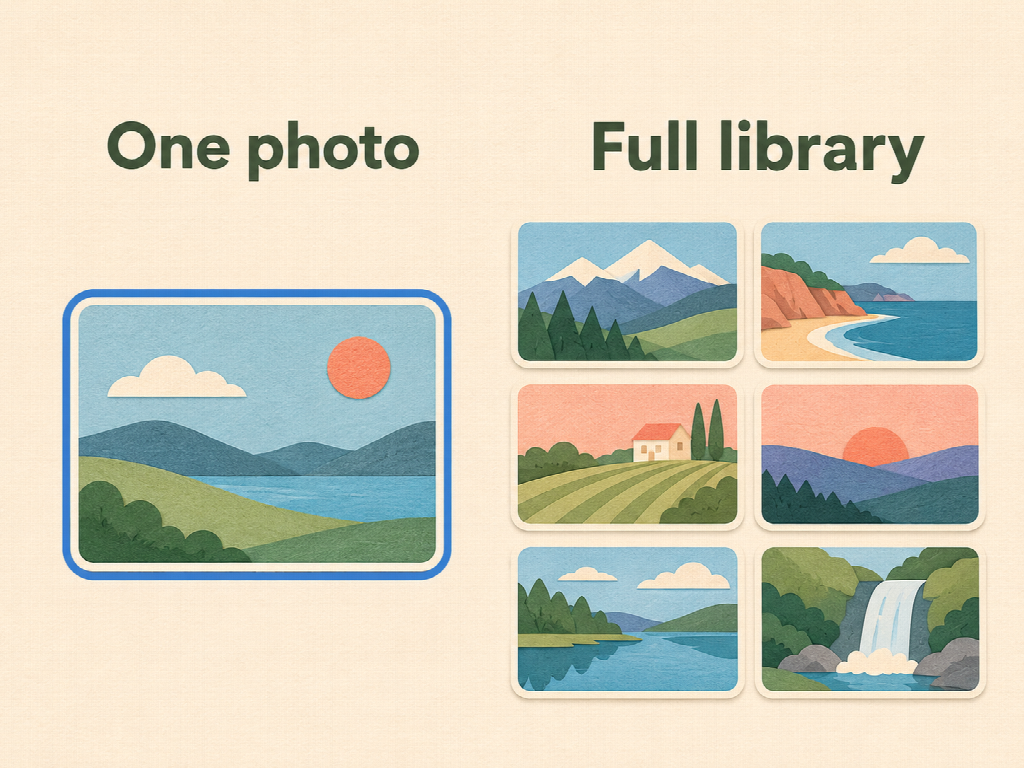
For photos, choose selected-image access instead of the whole library where the app supports it. For contacts, consider sending an invitation yourself rather than uploading your address book.
After changing a permission, test the feature you use. If it stops working, check the app’s explanation before restoring access.
Match Network Privacy to a Network Concern
If your concern is about the connection your family uses away from home, a guide to what a VPN does can help you decide whether it belongs in your setup.
Look at which devices it supports, how to tell it is connected and what its privacy policy says. Choosing a VPN also means choosing a provider to trust.
Most websites already use HTTPS to encrypt the connection between your browser and the site.
A VPN adds a separate encrypted connection to its server.
Neither choice decides who can view a shared album or which details you put into an account.




Make One Useful Change Before Moving On
Start with an app that holds something you care about: family photos, locations or a shared schedule.
Check the information you have saved, who can see it and the permissions it has.
You may find one unnecessary field to remove or one permission to narrow.





Leave a Reply